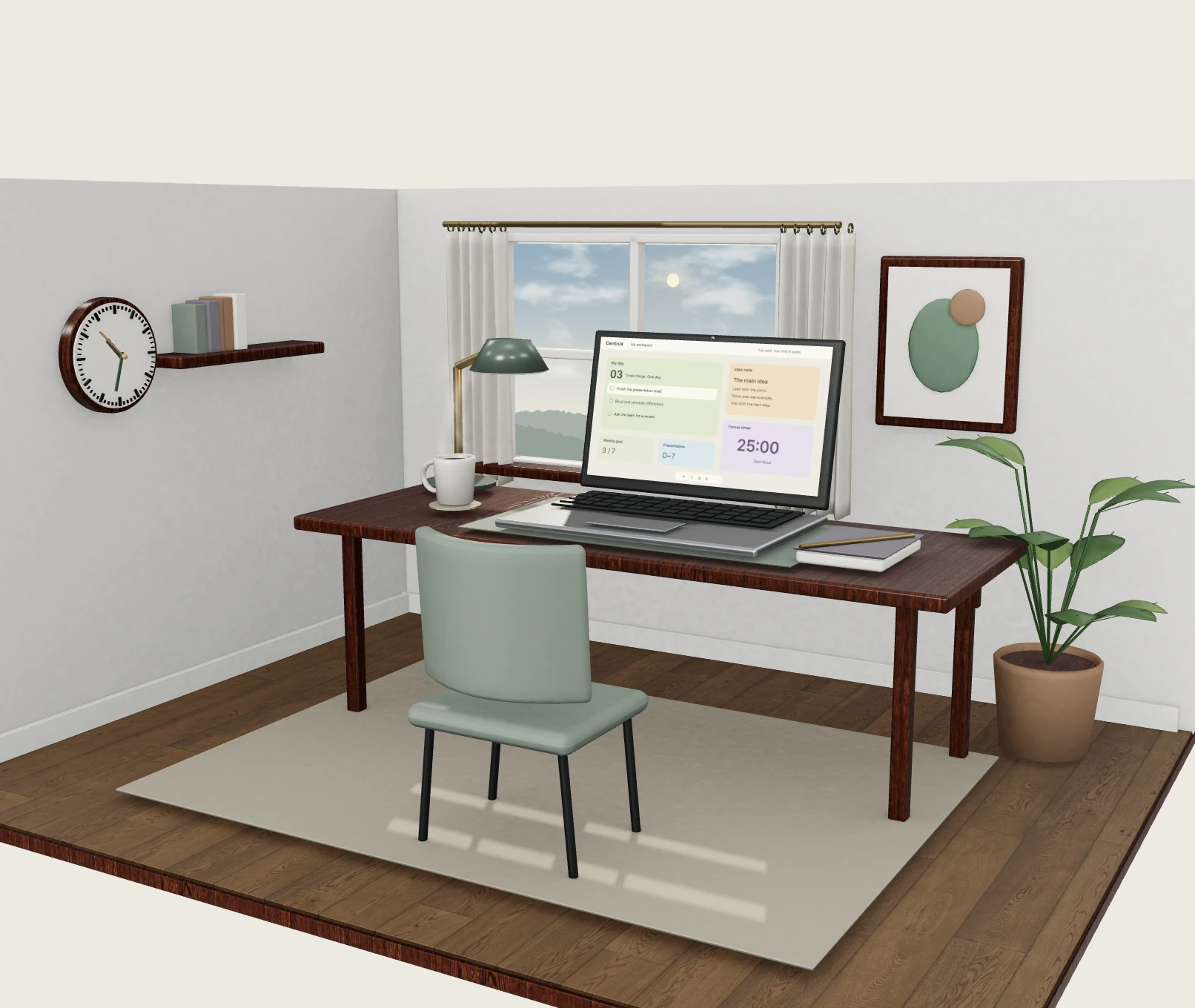
My day01 / 04
Start with your day.
Keep what matters today where you can see it.
01 / Your workspace
A space you love. A day that feels like you.
Tasks, notes and focus tools, right where you need them. Make a workspace around the way you work.
Scroll to step inside your workspace.
Scroll to bring your tools into place
02 / Your way
Everything you need, where you need it
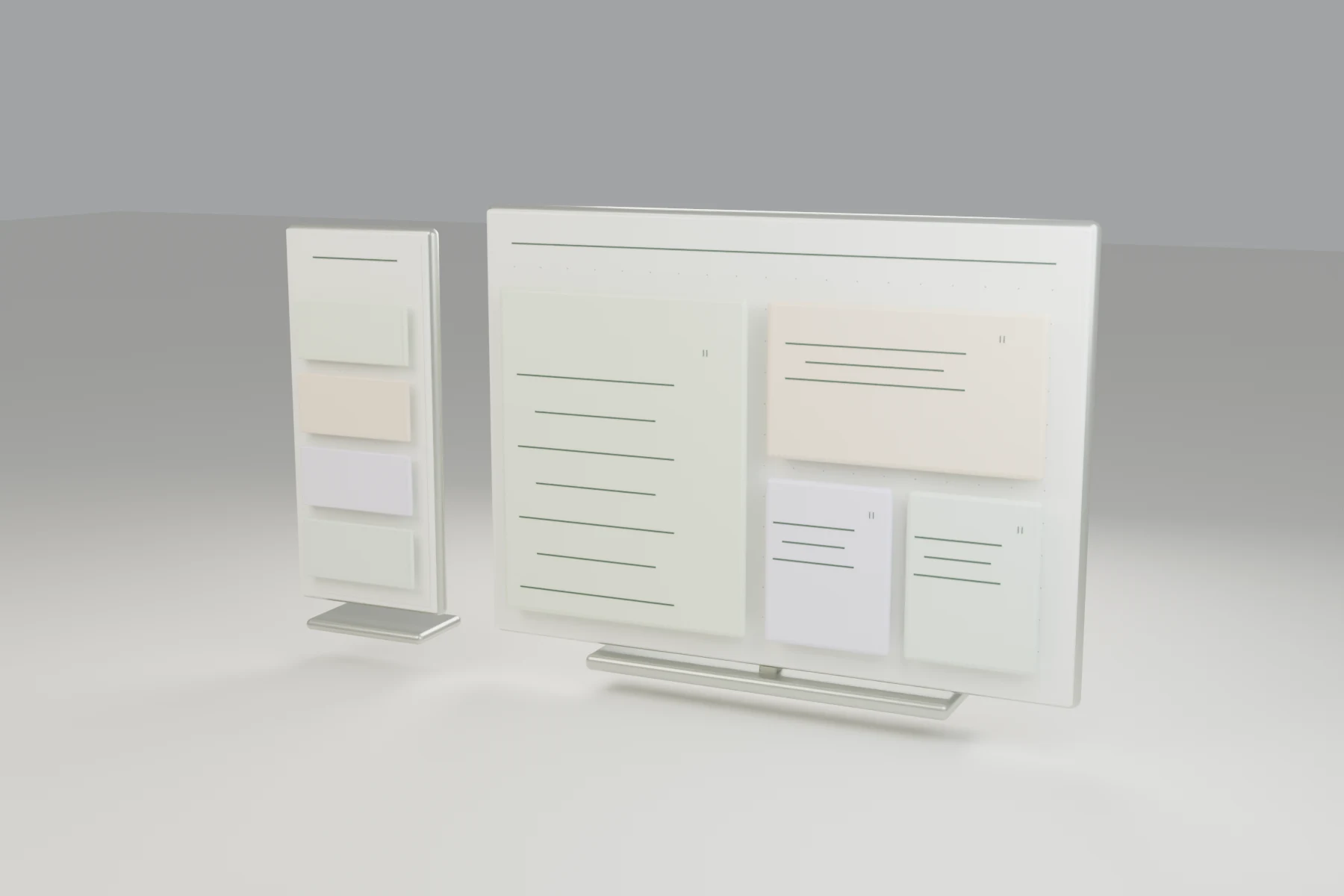
A note beside your tasks. A timer beside your ideas. Bring in the tools you need, one by one, and make room for your day.
Sample layout animation · Desktop canvas
In the app, drag tools from the Add tools drawer onto the canvas.
My day01 / 04
Keep what matters today where you can see it.
Notes02 / 04
A place to collect ideas while you read and work.
Focus timer03 / 04
Bring your timer close. Give the task your attention.
Goals04 / 04
Add a small goal. Just the tools you need, in a layout that feels right.
Your workspace, brought together.
03 / Connected knowledge
Discover the context in what you know
Find tasks, notes and wiki pages in Space. Follow saved connections from the reasons behind a decision to the work that comes next.
Search. Follow a connection. Open the original.
Search for “first screen” to find related tasks, notes and wiki pages.
“When I first arrive, I’m not sure where to start.”
Follow a decision’s saved evidence link to the interview that explains why it was made.
Based on the interviews, we decided to make one starting point clear on the first screen.
Find the follow-up task linked to that decision, then open the original to continue your work.
Improve the first screen — prepare a draft with the interviews and decision in mind.
An illustrated journey with sample records · Explore the actual Space on desktop.
What you learn today. Where you start tomorrow.
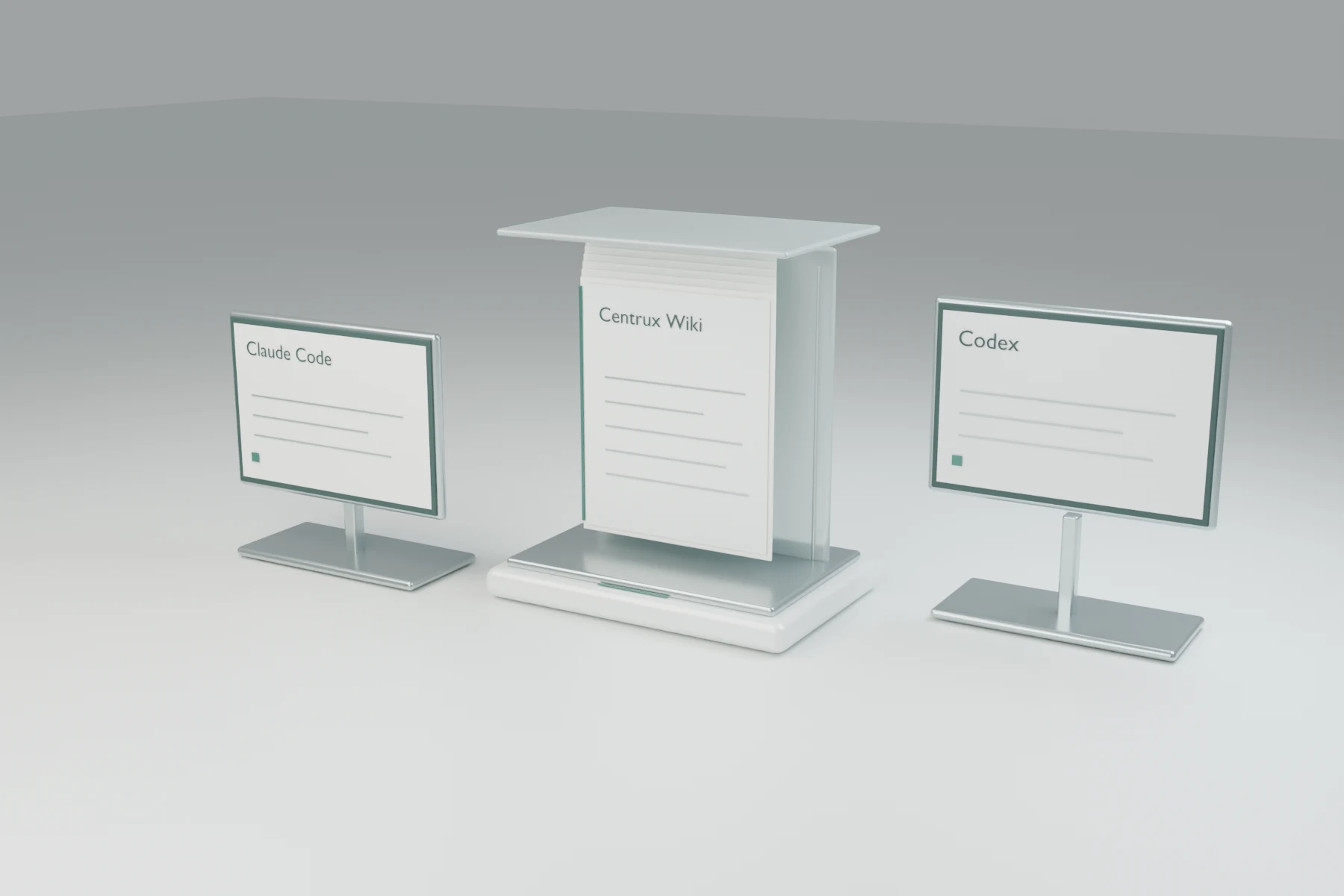
Save what you learn with AI to your wiki. Ask a connected AI to retrieve it in your next conversation, and continue from the same records.
An example of asking MCP-connected AI tools to save and retrieve knowledge.
Ask AI to save the useful parts of a conversation. It searches for related wiki pages, then creates a page or updates what is already there.
“Summarize the interviews in my wiki.”
People were unsure where to begin when they first arrived. The finding is saved for later.
Ask your next AI to read the relevant wiki pages. It retrieves the records you saved, so you can build on that context.
“Read the interviews and propose a better first screen.”
Using the interviews, prepare a proposal that makes the first screen’s starting point clearer.
Ask AI to add the new decision to the existing page. Link the evidence and create a follow-up task to use in your next conversation.
“Update the existing page with this decision.”
Update the decision with the interview evidence, then continue with the first-screen improvement task.
An illustration with sample data
05 / Your place
One thing to do. One idea to keep. Start your day in a space that feels like you.
A widget desk on PC, tabbed screens on mobile.
Review your purpose and mood after signing up. Sample notes and tasks stay here.
Your sample content is not saved or carried over when you sign up.
Get started
No card required. You can review the purpose and mood you picked in the demo after signing up.
Keep exploringPRICING
Free
$0/mo
Pro
Choose Pro when you need more project spaces or more teammates.
$8.99/month
$8.99 billed monthly · ₩9,900/month in Korea · Tax included except US sales tax
Yearly: $89.90/year · Equivalent to $7.49/month
Widgets, wiki and MCP connections are included in Free. Monthly and yearly Pro have the same features.
Payments are processed securely by Paddle, our merchant of record. Refund Policy · Terms
Step-by-step guides to task management, the knowledge graph and connecting AI to your wiki.
AI integration · Personal knowledge
Use Centrux MCP to save conclusions from AI conversations, update existing wiki pages and create tasks. Learn the connection requirements and a practical search-first workflow.
Task management · Collaboration
Plan work with Centrux task tables, Kanban boards, notes and checklists. See how to organize a personal project, arrange your canvas and keep working on mobile.
Knowledge graph · Work context
Explore your work in Centrux Knowledge Space, a desktop knowledge graph. Find connections through project membership, dependencies, mentions, keywords and tags.
The free plan includes one project, one collaborator, 100MB of storage (5MB per new file), wiki and MCP integration. Pro adds unlimited projects and sharing for USD 8.99/month or USD 89.90/year (KRW 9,900/month or KRW 99,000/year in Korea). Yearly Pro is billed upfront and renews each year, with the same features as monthly Pro. Tax is included except that US sales tax may apply at checkout.
No. After connecting MCP, explicitly ask your AI tool to save or update the content you want to keep. Search for an existing page first and keep reusable conclusions rather than entire conversations.
Mobile browsers support tasks, notes, wiki, a focus timer and settings. The infinite canvas and Knowledge Space graph are available on desktop.